
30 DAY SECURITY CHALLENGE
A 30 DAY CHALLENGE TO HELP YOU GET CONTROL OVER YOUR ONLINE SECURITY AND PRIVACY.
DAY 1: Set Your Intentions & Take Note of Accounts and Devices
What do you intend to accomplish with this 30 day challenge? Write down your goals and mentally prepare yourself for the work ahead.
While you have your notepad out, write down any and every account and device you can think of that you currently own. For devices, collect any unused gadgets that you want to get rid of. We’ll deal with those tomorrow.
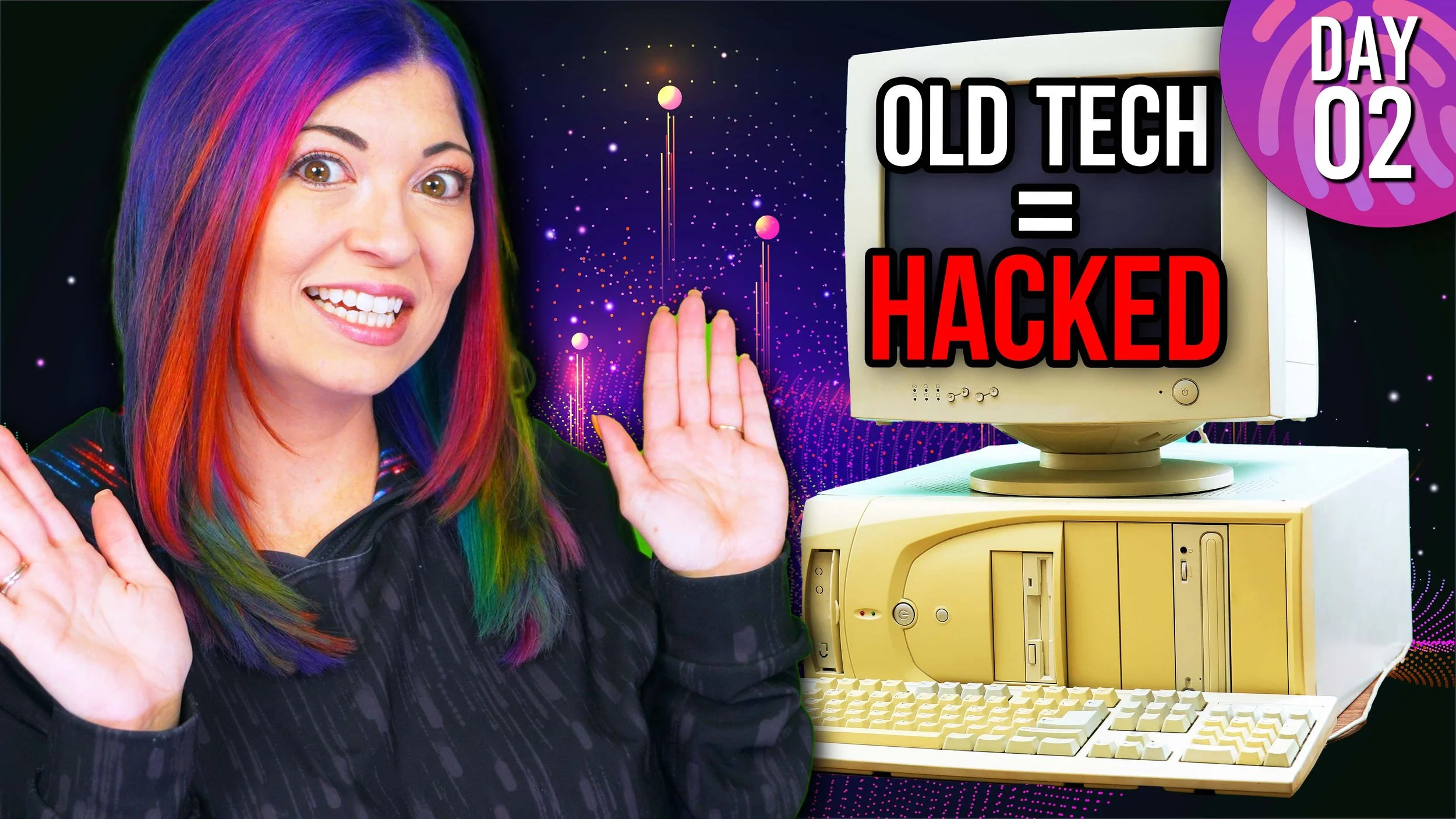
DAY 2: Delete Old Accounts & Factory Wipe Old Devices
Find old accounts and old devices. Use JustDelete.me for help deleting online accounts. If you forgot your password, try to get a new password, log in, then delete those accounts.
Factory wipe old devices for reselling or e-recycling.
DAY 3: Physical Security + DeleteMe: Opt Out Of Public Information Databases
Data that can be used to steal your identity, like your mailing address and phone number, can be easily hijacked. This is how you replace those by poisoning data with secondary information.
An overview on opting out of "yellow page-type" websites to better protect your personal information.
DAY 4: Protect Your Network & Create A Guest Network
Your Wifi network is basically the digital front door to your house, so prioritize locking it down with security.

DAY 5: Who’s On My Network? IoT Security
Log back into your admin interface and check who's on your network. Kick off any unknown devices. If any of 'em were actually your devices, just log them back in with new SSID settings. For IoT / guests - ONLY use the guest network. Your PC and personal devices can be on internal network.
DAY 6: Smarthome Permissions
Smarthome apps and devices are convenient, but this comes with the cost of privacy. This tutorial covers removing permissions that are too privacy invasive.

DAY 7: Set Up A Private Cloud Backup Solution
Choose a privacy friendly cloud backup solution that offers zero knowledge policies and encryption in transit. Start encrypting data that is stored in the cloud with non-zero knowledge providers.
DAY 8: Set Up A Password Manager
Download and set up a password manager of your choice. Add all of your existing passwords to the new password manager.
DAY 9: Generate New Passwords for ALL of Your Accounts
Generate them with the new password manager if possible, or create your own. EACH ONE MUST BE DIFFERENT.

DAY 10: Set Up Encryption, Lock Screens, Find My Device, and Auto Updates
Personal devices - phones / laptops. Set up encryption if not by default. Set up lock screen if not already turned on. Which lock screen option is best? Set up Find My Device accounts so if your device is stolen, you can remotely wipe it.
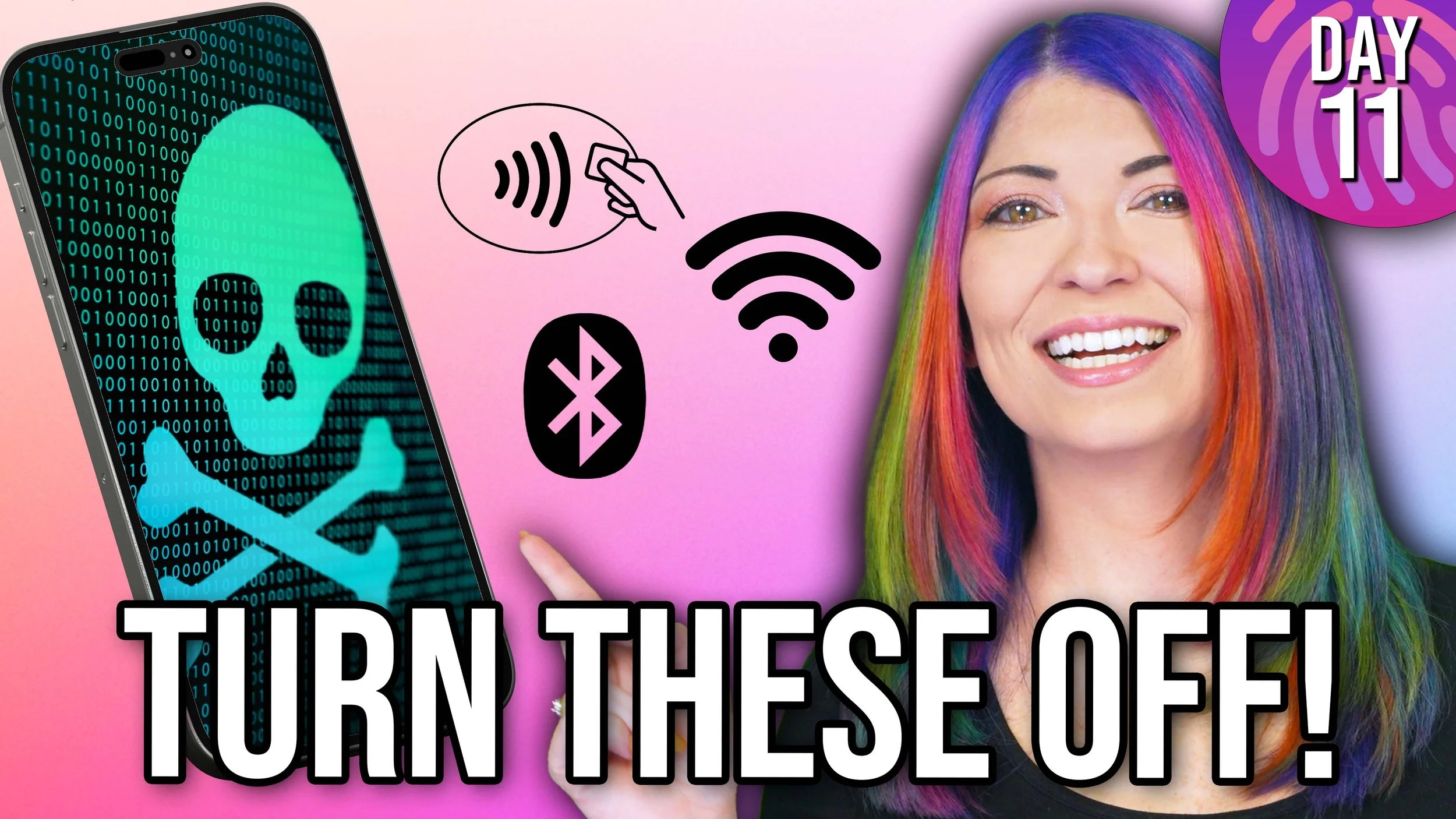
DAY 11: Turn Off Bluetooth / NFC / Wireless
How to disable commonly used attack vectors when not in use, and why. Turn off Bluetooth. Turn off NFC. Turn off auto connect to known wireless access points. Forget networks you don't normally connect to.
DAY 12: AntiVirus and AntiMalware Software Apps
Choose an Antivirus and Antimalware software app you like and download it. Turn on auto scans. Turn on auto updates.
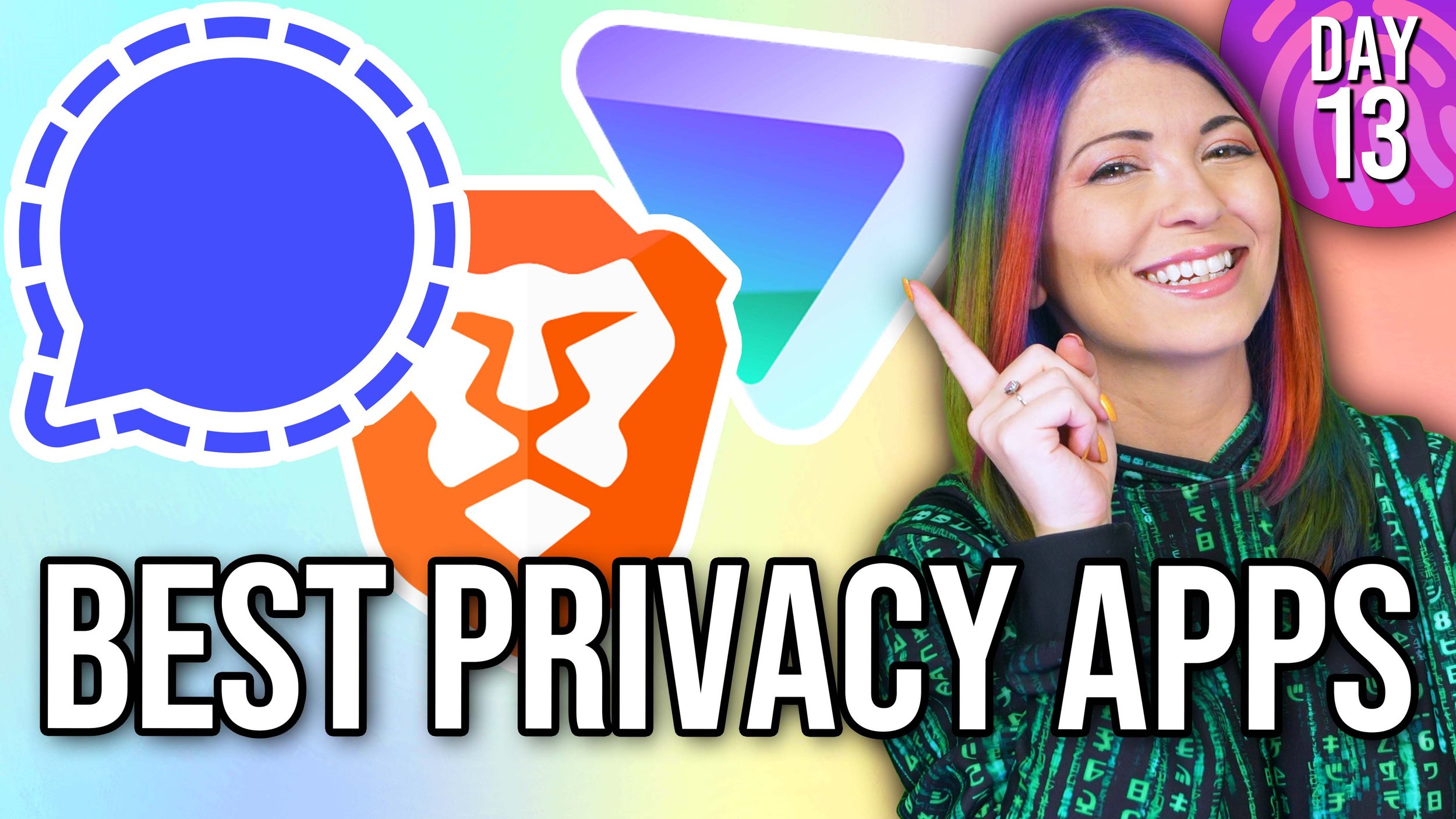
DAY 13: Set Up Privacy Conscious Smartphone Apps
Switch to privacy focused smartphone app providers such as Signal, Brave Browser, and Tunnel Bear. Opt into privacy settings on apps like WhatsApp. Turn on and use a VPN.
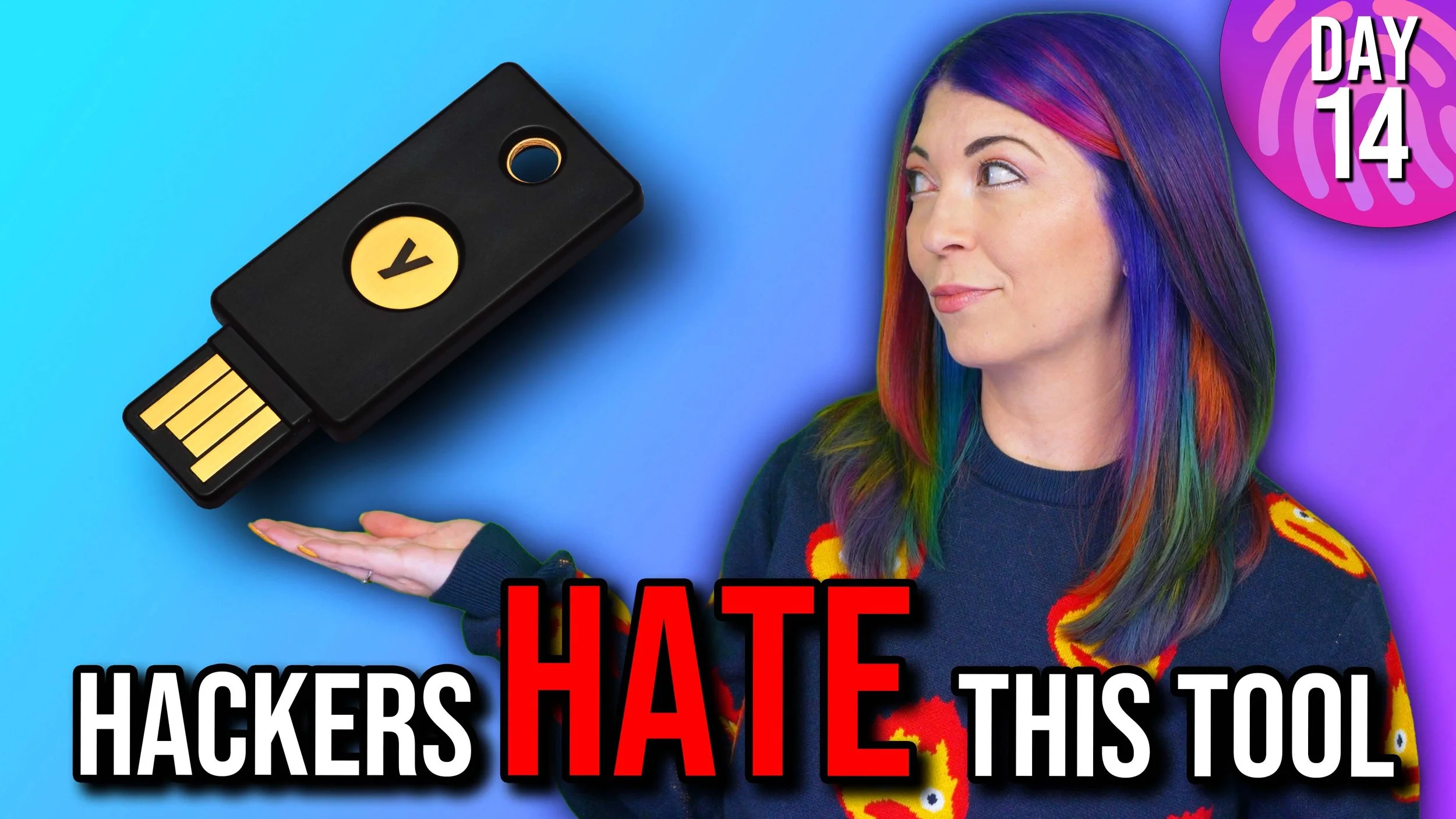
DAY 14: Set Up Two Factor Authentication / MFA / Passkeys
Today we’re adding another layer of armor to your online accounts: Multi-Factor Authentication (MFA) and Passkeys. Even if someone steals your password, this step stops them cold.

DAY 15: Time For A Better Browser
Use a new, secure browser. Set it as default browser. Port existing bookmarks. Set up auto updates for browser. Set home page as privacy friendly search site. Delete any details saved in browser.
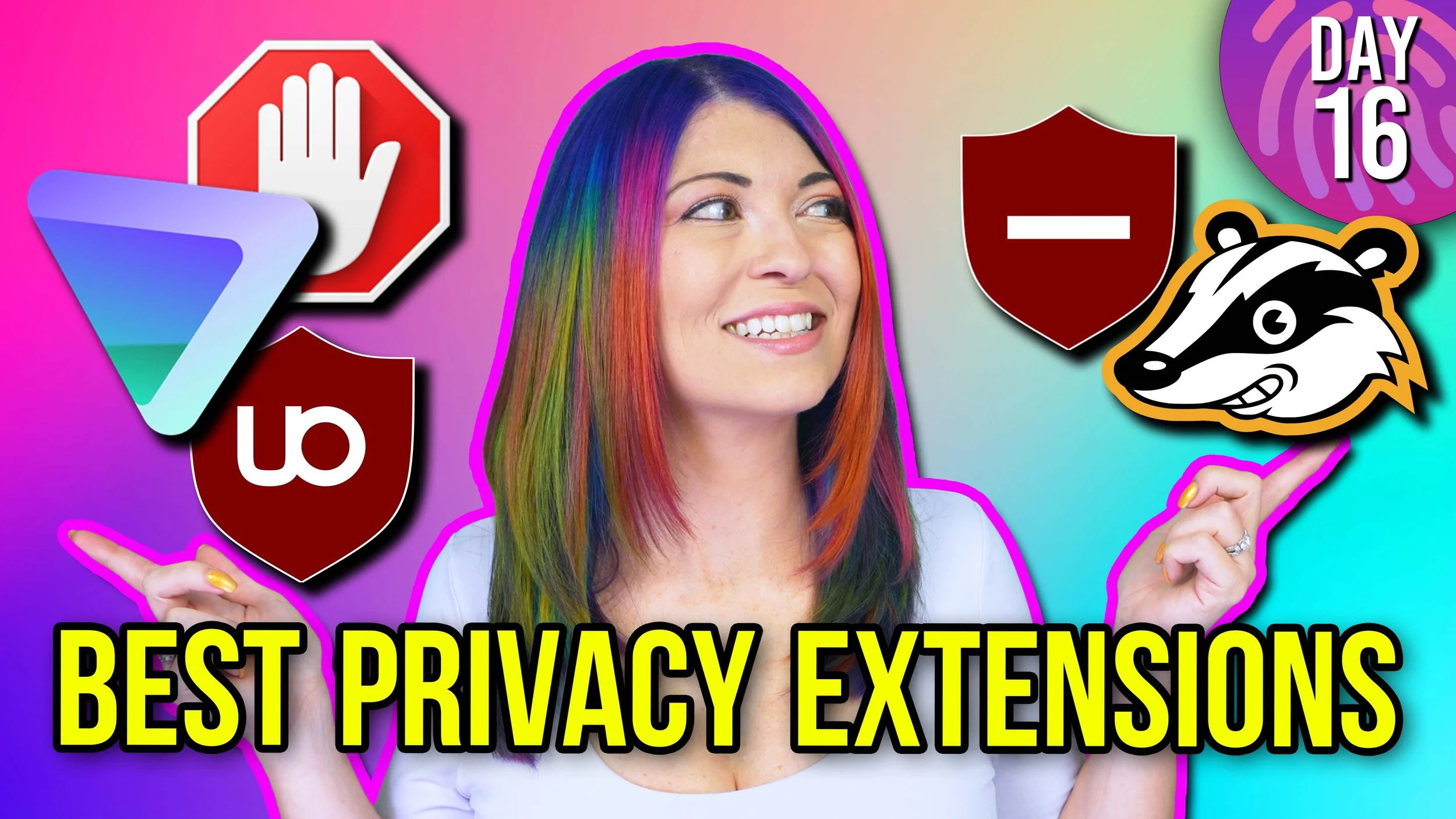
DAY 16: Set Up Privacy & Security Extensions
Extensions create a powerful extra layer of protection, blocking trackers, forcing encrypted connections, stopping malicious ads, and keeping your browsing private.

DAY 17: AI & Infosec
Learn how to spot AI generated content, and how to avoid sharing data with AI and large language models.

DAY 18: Using Proper Internet Hygiene
Don’t click on random shit. Practice being skeptical.

DAY 19: Set Up A VPN
Use a VPN for most, if not all, internet usage. Learn about researching VPNs and where to find information on collected data. Pro Tip: create your own VPN.

DAY 20: Clean Out Your Friends List
Clean out your friends list so you have less chance of phishing from old friends, more privacy among smaller group of friends and family.

DAY 21: Go Through Third Party App Permissions And OAuth Services
Delete any third party permissions from accounts that you no longer need. Check remaining ones for updates.

DAY 22: Clean Up Social Media Network Privacy Part 1 - Facebook, Threads, Instagram, Bluesky
Double check PW / 2FA, turn off extra services, check privacy settings for playlists, private messages, account tweets or posts.

DAY 23: Clean Up Social Media Network Privacy Part 2 - Google, Youtube, X, LinkedIn, Discord
Double check PW / 2FA, turn off extra services, check privacy settings for playlists, private messages, account tweets or posts.

DAY 24: Create An Account on Have I Been Pwned
Learn what accounts have been breached or were part of a leak of data. Sign up for notifications for future hacks.

DAY 25: Email Privacy and Security
Choose a better email provider, delete old emails and/or accounts that you no longer need. Change other online accounts to new email address. Remove contacts you don't need.

DAY 26: How To Spot A Phishing Email
Be skeptical of emails, links, and downloads.

DAY 27: Spot Fake Support Calls / Social Engineering Attacks / Alert Fatigue / SIM Safety
Be skeptical of unsolicited phone calls about computer support, or ultra-friendly strangers asking about commonly used security question / answers. Learn about protecting your SIM from hijack, and how to avoid alert fatigue.

DAY 28: Spot ATM Skimmers / Freeze Credit History
An overview on freezing your credit history at top credit unions, plus how to spot ATM skimmers.

DAY 29: Invest In A Faraday Bag / RFID Blocking Wallet / Purse
Where to buy an RFID blocking wallet or faraday bag, and what they are used for.

DAY 30: Upgrade To A Privacy Friendly Operating System / Change OS Settings
How to change your operating system settings to be more secure and private. Pro Tip: Upgrading to a privacy friendly operating system is also a plus.
DAY 31: BONUS: Review / Share With Friends / Take It Further With Some Resources
You've completed the challenge! Share this with friends and family, teach others what you've learned, and go farther with links and resources.